DAW Guide

MIDISketch in Ableton Live
Ableton Live 11+ has basic MPE support, but drawing precise per-note pitch curves is still limited. MIDISketch gives you a dedicated drawing environment for expressive MIDI, host synths inside or export to Ableton clips.
Why MIDISketch
Ableton's MPE editing workflow requires expanding individual notes and drawing automation per-note in a small lane. MIDISketch replaces this with a full visual piano roll purpose-built for expressive MIDI.
- Visual Bezier pitch curves with precise control points
- Brush and stamp tools for painting note patterns
- Real-time MPE preview, hear bends as you draw
- Non-destructive LFO modulation on any expression lane
- Host your synth inside for instant feedback, no routing needed
- Drag-and-drop MIDI export back into Ableton clips
Getting Started
Download & Install
Download the installer for your platform from the MIDISketch page. On macOS, the .pkg installer places VST3, AU, and CLAP plugins automatically. On Windows, the .exe installer handles VST3 and CLAP.
- macOS VST3:
/Library/Audio/Plug-Ins/VST3/ - macOS AU:
/Library/Audio/Plug-Ins/Components/ - Win VST3:
C:\Program Files\Common Files\VST3\
From v0.9.10.6 on, the VST3 sits in an Eliotonic folder inside the VST3 folder (the AU doesn’t move). Live finds it after a restart. See Where Files Live.
Load in Ableton Live
In the left-side browser, navigate to Plugins → VST3. Find MIDISketch and drag it onto a MIDI or Instrument track.
Hosting Synths
Load your synth directly inside MIDISketch for instant audio feedback as you draw. No external routing needed, Ableton sees MIDISketch as a single instrument.
- Click the Synth button in MIDISketch's toolbar to open the plugin browser.
- Load any VST3 or AU synth, Serum, Vital, Phase Plant, Pigments, or anything installed on your system.
- Inside the hosted synth, enable MPE mode and set pitch bend range to
48semitones.VitalOn the Advanced tab, turn on MPE (bottom left) and set the bend range (bottom right) to
48.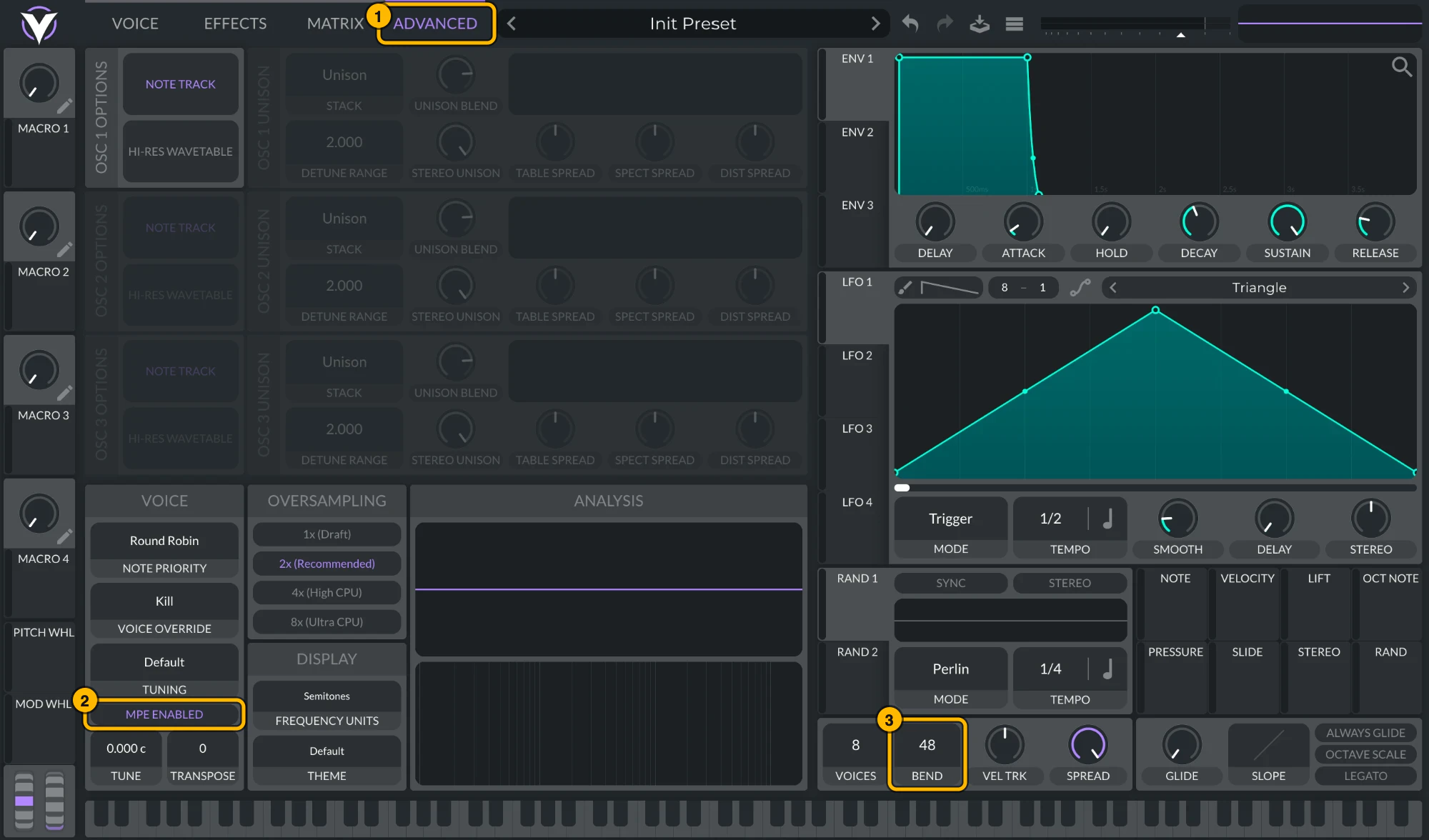
Vital: (1) Advanced, (2) MPE Enabled, (3) bend range 48. Click to see it full size. Serum 2Serum 2 ships with MPE on and a bend range of
48. To check, open its menu: MPE Enabled should be ticked and the MPE bend range at48. To keep MPE on in every new Serum 2, tick MPE enabled by default under Global settings › MPE.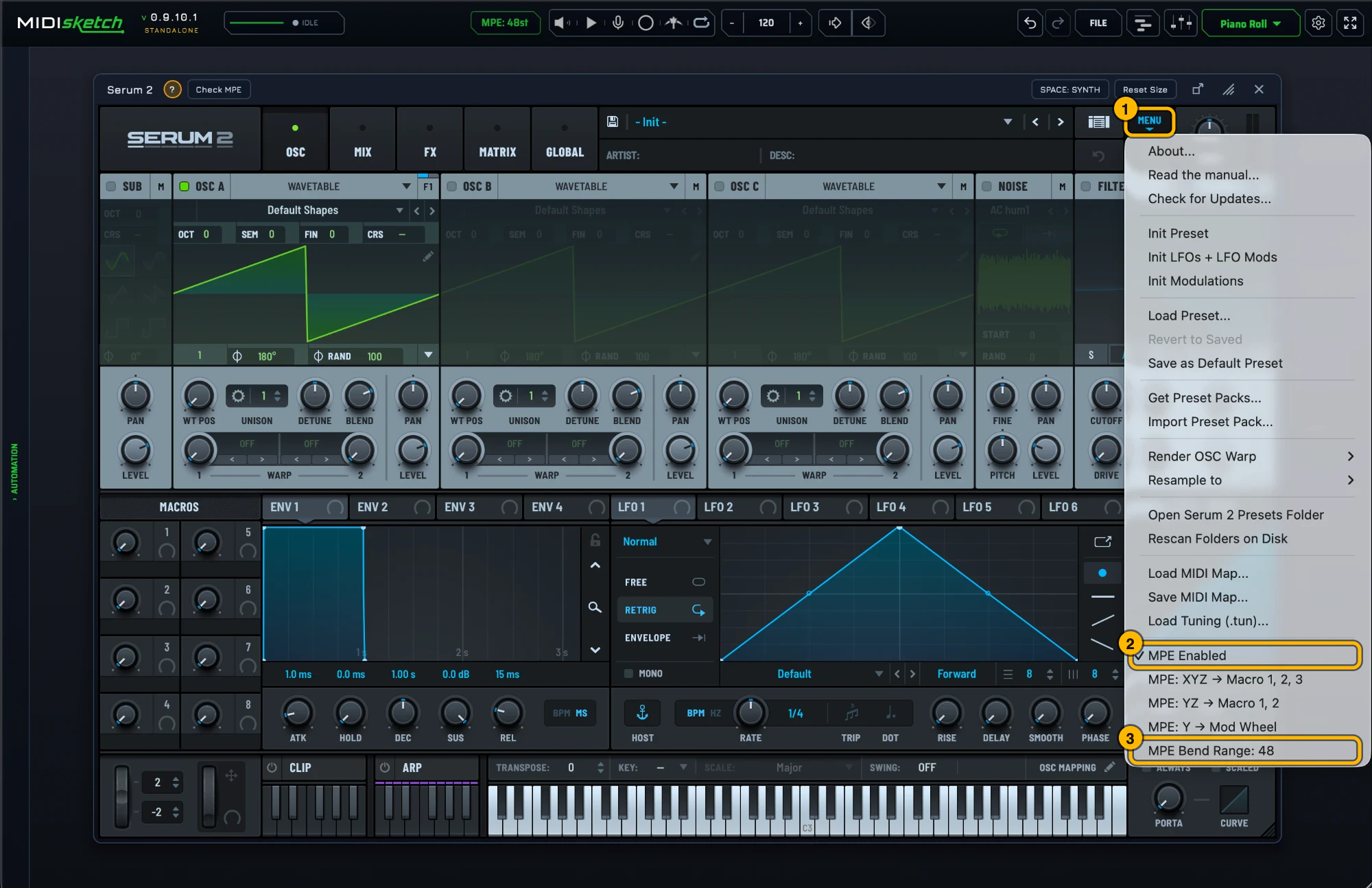
Serum 2's MPE settings. Click to see it full size. Most synths default to a pitch bend range of 2. Bends will sound barely audible until you change this to 48. Alternatively, match MIDISketch's pitch bend range to your synth: settings gear → MIDI Settings... → MPE & PITCH → PITCH BEND (MPE Bend Range in MPE mode, Bend Range in Pitch Wheel mode), or click the MPE: 48st pill in the header, which opens that tab directly. - Not sure of the synth's MPE settings? With it loaded, the strip under the synth shows a green ? with that synth's MPE steps (general tips if there is no guide for it) and Check MPE, which tests a hidden copy of the synth: is MPE on, does its bend range match MIDISketch's, does it react to pressure and slide. If a synth is missing from the browser, Scan for all VSTs... in its menu finds every installed plugin; the scan doesn't run on its own.
- Place notes in MIDISketch's piano roll. Double-click a note to add pitch points. Drag to create bends, glides, and vibrato.
- Press play in Ableton. Everything plays through the hosted synth in real time.
Ableton MPE Routing
Ableton Live 11+ supports MPE natively. If you prefer to use a synth on its own track instead of hosting it inside MIDISketch, you can route MPE MIDI between tracks.
Routing Steps
- Load MIDISketch on a MIDI track.
- Create a second MIDI track with your target synth (e.g. Serum, Vital).
- Turn on MPE for both plugin devices: right-click the MIDISketch device's title bar and choose Enable MPE Mode, then do the same on the synth device on its own track. Live only passes per-note channels to and from a device with MPE Mode on. Without it every bend collapses onto one channel and the curves flatten.
- On the synth track, set MIDI From to the MIDISketch track and leave the channel chooser on All Channels.
- Set Monitor to
Inon the synth track so it receives live MIDI. - In MIDISketch, draw your notes and pitch curves. The MPE data routes to the synth track automatically. A new MIDISketch plays its built-in synth, and MIDI Output and Internal Audio are both on by default, so the MIDISketch track keeps sounding next to the routed synth. To hear only the other synth, turn off Internal Audio (settings gear → MIDI Settings... → MIDI OUT → WHERE NOTES GO) or click the speaker left of Play.
- Arm the synth track to record the incoming MPE MIDI as an Ableton clip.
Quick Tips
- Hosting synths inside MIDISketch is the fastest setup, no routing needed.
- Ableton 11+ supports MPE natively, so external routing preserves per-note bends, as long as MPE Mode is on for both the MIDISketch device and the synth device.
- Set pitch bend range to
48in both MIDISketch and your synth. - MIDISketch works as VST3 on both Windows and macOS in Ableton.
- Live doesn't load MIDI effect plugins, so MIDISketch MIDI FX isn't for Live. Use the main MIDISketch as above.
- Use the Standalone app to sketch ideas without opening Ableton.
- Export MIDI from MIDISketch and drag it into an Ableton clip for further editing.
 FL Studio
 Logic Pro
 REAPER
 Bitwig Studio
 Cubase
 Studio Pro
 Pro Tools
 LMMS
LMMS